
Kodi IPTV: The Ultimate Live TV Setup and Streaming Guide
Quick Answer: To set up a Kodi IPTV connection, you must install the official PVR IPTV Simple Client directly from the official Kodi repository. Once installed, open the add-on configuration, select “Remote Path” (Internet Address), and input the direct M3U playlist URL provided by your premium IPTV provider. Finally, add your XMLTV link in the EPG settings tab and restart the application. Kodi automatically generates a “TV” menu on your home screen, granting you immediate access to your live television channels and program guide.
PRICING PLANS
Kodi IPTV
- Platinum
Platinum
Trial
24 Hours
Platinum
1 Month
1 Device
Platinum
3 Month
1 Device
Platinum
6 Month
1 Device
100% money-back guarantee for your first 24 Hours. Learn More →
Why Build a Dedicated Kodi IPTV Setup?
Modern cord-cutters often juggle multiple applications to access local media, on-demand movies, and live television. A dedicated Kodi IPTV configuration solves this fragmentation. By integrating your live streaming provider directly into this powerful open-source media player, you consolidate your entire digital ecosystem into one highly customizable, ad-free interface.
Ad-Free Native Interface
Standalone Android streaming apps frequently bombard you with aggressive advertisements. Kodi operates entirely ad-free, ensuring a clean, distraction-free viewing environment.
Advanced Hardware Decoding
Kodi utilizes superior hardware acceleration. This technical advantage processes high-definition 4K streams far more efficiently than standard players, eliminating stuttering on lower-end smart devices.
Total Customization
You control the exact look and feel of your television guide. Kodi allows you to apply custom skins, organize channel groups, and filter out unwanted content instantly.
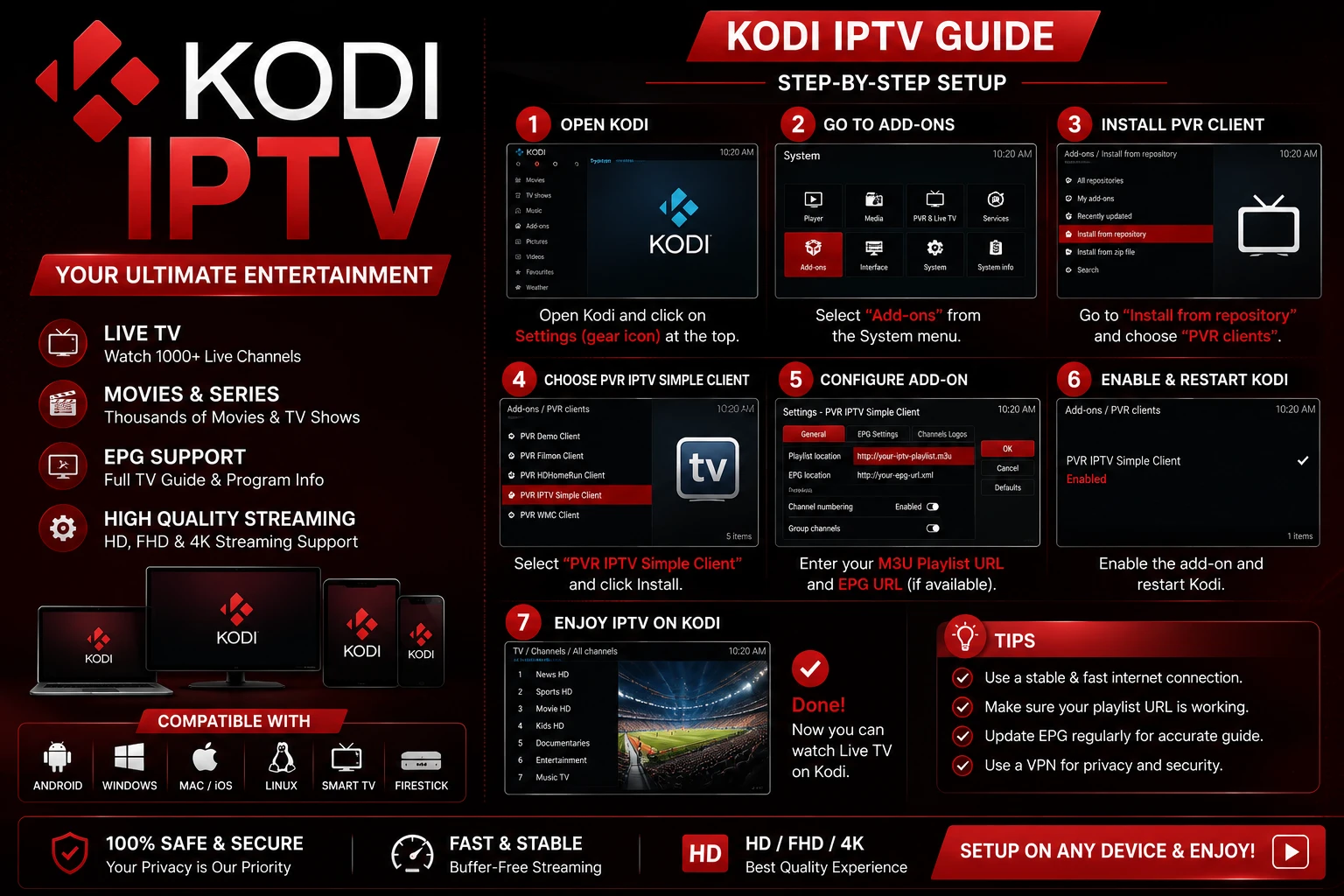
How to Configure the PVR IPTV Simple Client
Kodi does not play live television out of the box. You must enable the internal add-on designed specifically to parse M3U playlists. Follow these exact steps to activate your live channels.
- Access the Add-ons Menu: Launch Kodi and navigate to the "Add-ons" tab located on the left-hand menu.
- Open the Repository: Click the open box icon (Package Installer) at the top left, then select "Install from repository."
- Locate the Client: Choose "PVR clients," scroll down the alphabetical list, and click on PVR IPTV Simple Client.
- Install the Add-on: Click "Install" and wait for the confirmation notification to appear in the top right corner.
- Configure Your Details: Click the add-on again and select "Configure." Under the "General" tab, ensure the location is set to "Remote Path," and enter the M3U playlist URL provided by your premium service.
Integrate Your Electronic Program Guide (EPG)
A premium viewing experience requires an accurate television guide. Without it, you browse blindly through thousands of channels. You integrate this guide using an XMLTV link.
While still inside the PVR IPTV Simple Client configuration menu, navigate to the EPG Settings tab. Set the location to "Remote Path" and paste your provider's XMLTV URL. Click "OK" to save your settings. Restart the Kodi application. Upon reboot, Kodi downloads your channel list and populates the EPG. You will now see a fully functional "TV" category on your main home screen.
Frequently Asked Questions (FAQ)
Does Kodi provide the live TV channels automatically?
No. Kodi is an empty, open-source media player. You must purchase a subscription from a reliable premium IPTV provider. The provider supplies the M3U playlist URL required to load channels into the Kodi software.
Do I need a VPN when streaming Kodi IPTV?
Yes. Experts highly recommend utilizing a secure Virtual Private Network (VPN) while streaming. A VPN encrypts your network traffic, protects your digital privacy, and prevents your Internet Service Provider (ISP) from throttling your connection speeds during peak broadcast hours.
Why does the PVR IPTV Simple Client fail to load channels?
If Kodi fails to load your channels, verify your M3U link for typos. Premium providers often lock accounts to specific IP addresses, or the playlist link may have expired. Always restart the Kodi application fully after updating any configuration settings to force a fresh channel sync.
Optimize Your Digital Entertainment Today
Take absolute control over how you watch television. Building a custom Kodi IPTV environment empowers you to bypass restrictive, ad-heavy applications. By utilizing the official PVR Simple Client and pairing it with a high-speed premium streaming provider, you create a flawless, buffer-free hub for all your global live television needs.